
Guide · Step by step
How to fix stuttering AI video
Your AI clip is 24 fps, yet the motion catches for a moment. Here is how to find out what is going on and how to fix it, with or without Frame Repair.
Updated
What the stutter actually is
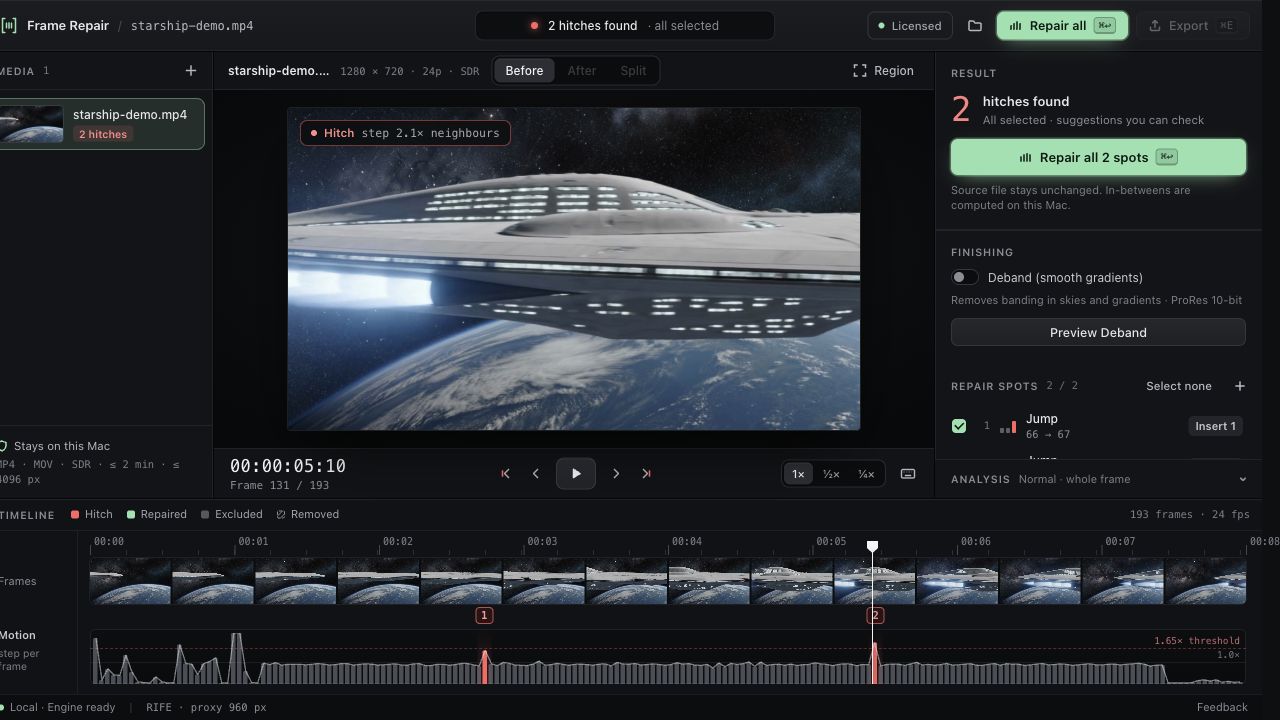
A video is a sequence of still frames. When something moves evenly, it covers about the same distance from one frame to the next. In the AI clips we tested there are spots where that step suddenly doubles. Every frame is still a different image and the file still runs at 24 frames per second, but one in-between position of the movement is not there. Your eye reads that as a hitch.
This is not a duplicated or frozen frame, and it is not caused by converting 24 fps to 25 fps. Those are different problems with different fixes; Why AI video motion looks choppy shows how to tell them apart.
Step by step
- 1
Rule out playback
Play the clip in a second player or on another screen. An even judder across the whole clip, most visible in slow pans, is usually how 24 fps looks on a 60 Hz display, not a fault in the file. If the catch happens at the same moment every time, in every player, it is in the file.
- 2
Find the frame
Pause just before the catch and step through one frame at a time (in QuickTime Player and most editors: the arrow keys). Watch a clear edge or object. At a motion jump, one step is visibly longer than its neighbours, roughly twice as long, and every frame is still a different image.
- 3
Decide: regenerate or repair
If the shot has other problems too, regenerating may be quicker. If it is right except for the hitch, keep it and add the missing in-between frame. You can do that by hand: in an editor with optical-flow retiming, slow down the two frames around the jump so the editor computes a frame between them. That works for one spot and gets tedious when a clip has many.
- 4
Or repair it automatically
Drop the clip into Frame Repair. Analysis starts on its own and marks every jump in the motion timeline. Click Repair all: Frame Repair computes the missing in-between frames locally on your Mac with RIFE 4.6 neural frame interpolation. Nothing is uploaded.
- 5
Review and export
Step through each marked spot before you export; the markings are suggestions. Export as ProRes 422 or H.264 at 24 or 25 fps. The export is re-decoded and checked for frame count, size and frame rate, and a repair log comes with it.
- 6
Put the sound back
Frame Repair exports picture only. Lay the repaired clip over the original audio in your editor. Each inserted frame makes the clip one frame longer, so check sync after the repaired spots.
What a repair looks like
How often the jump appears varies. In our Seedance 2.0 test clips it showed up roughly once a second in most clips, only a few times per shot in others, and in one clip on every fourth frame (49 repairs). The container ship clip on our homepage went from a 2.2× step to 1.4× after repair, and a second analysis found no hitch left.
Which AI video models this applies to
Frame Repair is not tied to a model. Clips from Seedance 2.5, LTX, Kling, Veo or Runway load like any other MP4 or MOV (SDR, up to 2 minutes, up to 4096 px). Our own testing so far used Seedance 2.0, so start with a short clip and check the result. The free trial gives you 3 watermarked exports for that.
When this will not help
- Hard cuts and strong occlusions can overwhelm interpolation.
- Faces, hands, text or warping are not repaired. Frame Repair fixes motion pacing only.
- HDR and wide-gamut clips are not supported.
- Even judder from playback on a 60 Hz screen is not in the file, so there is nothing to repair.